
 Windows Software
 Mac Software
 Freeware
Q:How to manage object layers in Page Editor of 3D eBook software?
Page Editor is useful tool to help us create rich content in 3D page flip book. However, we need to choose a good way to manage our objects while we added a lot of multimedia objects in one page. Otherwise, the page will be a mess to modify. How to select a targeted object from all the objects? How to quick define overlap for pictures? All this can be done via “Layers” in Page Editor of 3D PageFlip Professional.
Step1: Run 3D PageFlip Professional. Enter Page Editor to design your eBook. After you add sound, flash, link, etc, you will find there are many objects in the page.
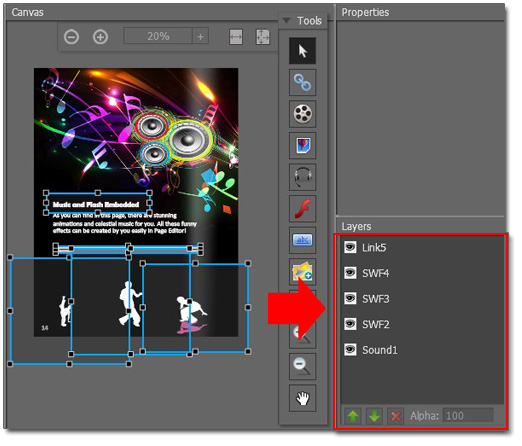
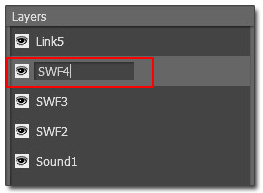
Step2: Rename layers. All layers will listed down on the right “Layer”. Double click to rename the object. Then you can distinguish them easily and quickly.
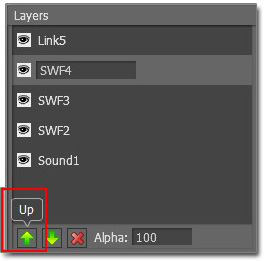
Step3: Reset order of the layer. Click “Up” button to move object to front and click “Down” button to move object to back. This is a little like the function (bring to front, bring to back) in Micro Word.
Step4: Delete layer to delete object. Click “Delete” button to delete the layer. As a result, you will delete the object directly. In this case, you will no need to find out the targeted object from a mess of objects while you want to delete it.
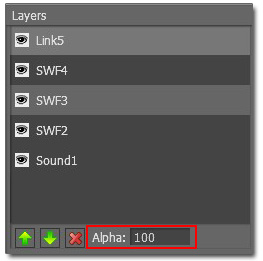
Step5: Change alpha for object. Click to choose the layer, input a value in “Alpha” option to change the opacity of your object. This is for the one who want further designing.
 Popular Download
- 3D PageFlip Professional
- 3D PageFlip Standard
- 3D PageFlip Pro for Mac
- 3D PageFlip for PowerPoint
- 3D PageFlip for Image
You May Like
- How to pay for Upload Service
- Easy send created realistic newspaper to customers
- How to display YouTube to 3D eBook page
- How to use themes in 3D PageFlip software
Any questions? Click the below button to contact us soon.